
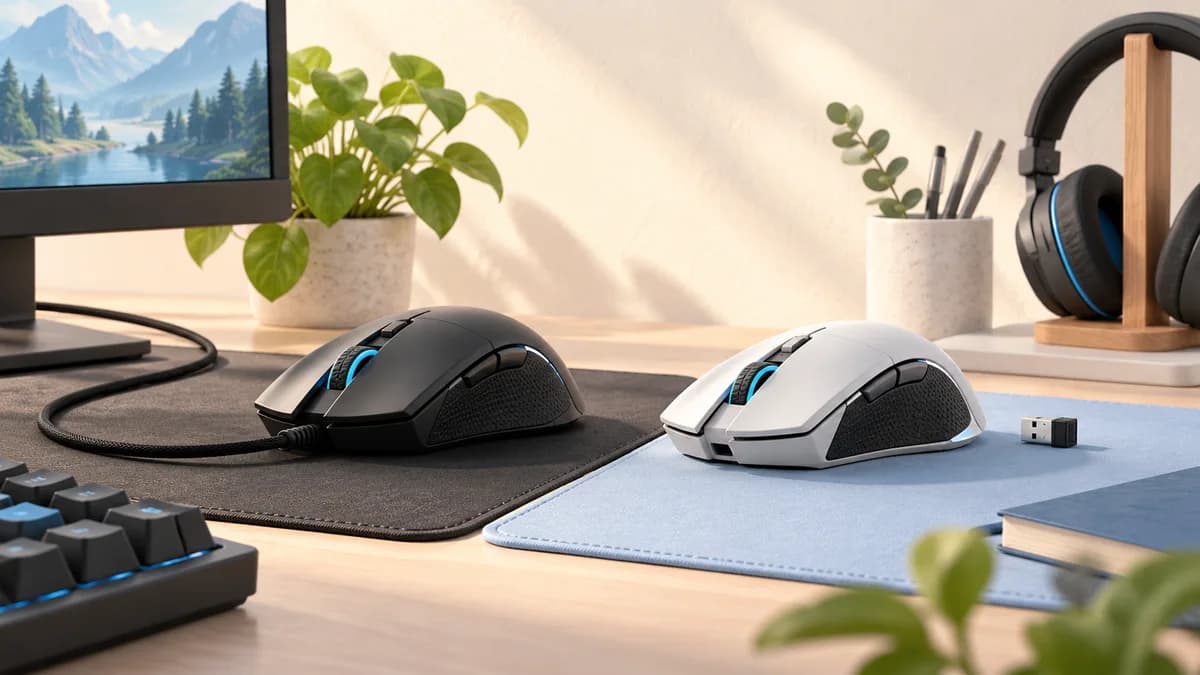
START HERE
The short answer
Choose wired if you want a direct connection without battery management. Choose a gaming-focused 2.4 GHz wireless mouse if cable-free movement matters and you are happy to charge or replace batteries. Bluetooth can be convenient for compatible devices, but check its supported features separately from the mouse's receiver mode.
- Compare the exact connection mode, not just the word wireless.
- A high advertised polling rate is not a measurement of total input latency.
- Check receiver compatibility, charging behavior and battery-life conditions before buying.
Three connections, three different checklists
Wired mice carry input over a cable and normally receive power through that connection. A 2.4 GHz gaming mouse typically communicates through its compatible USB receiver. Bluetooth instead pairs with a compatible host, which can be useful when you do not want to dedicate a USB port to a dongle.
Do not assume a wireless model has Bluetooth, or that plugging in its charging cable enables wired input. Check the exact model's manual. Corsair's pairing instructions, for example, distinguish its 2.4 GHz mode from Bluetooth; that distinction matters when setting up or troubleshooting a mouse.
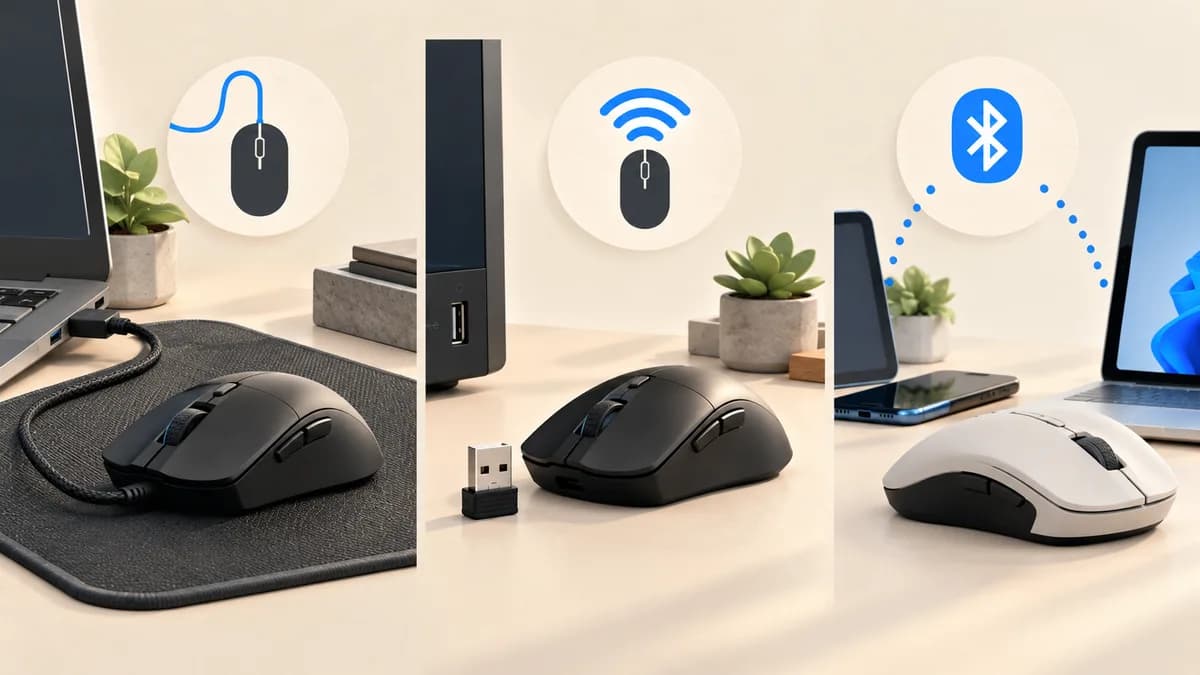
| Connection | Practical benefit | Check before buying |
|---|---|---|
| Wired USB | No battery routine during normal use | Port type, cable length and cable routing |
| 2.4 GHz receiver | No cable attached during wireless use | Included compatible receiver and supported report rates |
| Bluetooth | Direct pairing with a compatible host | Host support and features available in this mode |
Do not reduce responsiveness to the cable
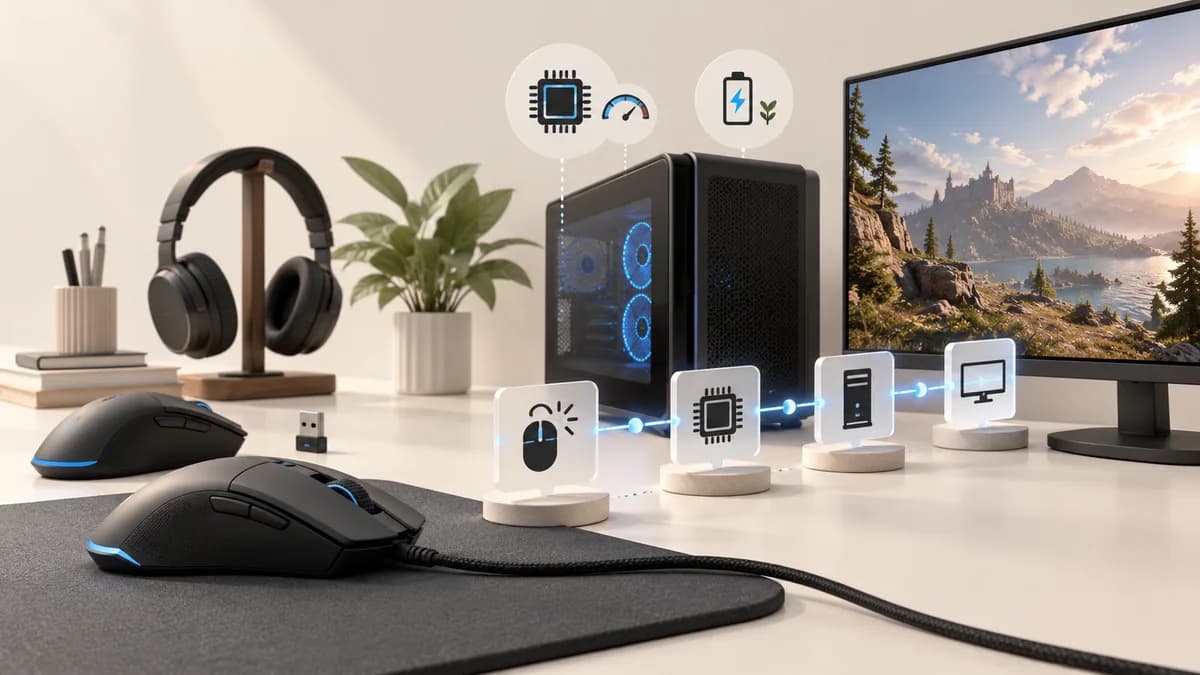
A mouse's advertised report rate describes how frequently it can send reports. It does not measure the entire path from a click or movement through the game to the display. Comparing a report interval with someone else's total latency result would compare different things. This guide does not claim a measured latency winner.
Check the supported rate in the mode you intend to use, along with any receiver or firmware requirements. Very high rates can increase CPU load and power consumption. If you mainly want to remove a bothersome cable, you can evaluate that benefit without assuming the wireless mouse will make you aim better.
Sources: Logitech: polling rate and DPI
Choose the maintenance routine you will tolerate
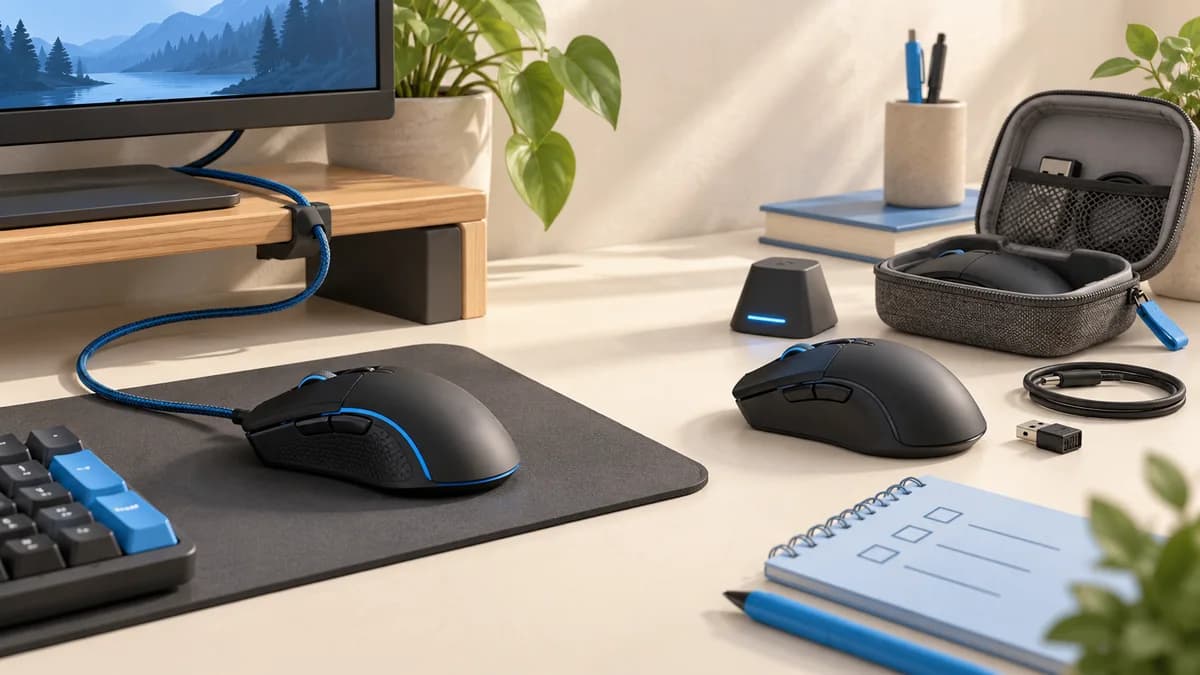
Wired is straightforward if forgetting to charge devices is a recurring problem. It still deserves a desk check: route the cable so it can move freely rather than catching on a monitor stand or pulling against an edge. Try a full comfortable sweep before deciding that the mouse itself is difficult to move.
For wireless, read how the battery figure was obtained. Connection mode, lighting and report rate can change runtime, so the largest advertised number may not match your intended settings. Confirm whether the battery is rechargeable or replaceable, whether the cable is included, and whether the mouse can be used while charging. These are model-specific questions.
One useful routine is to check the charge indicator before a planned session and keep the required cable accessible. If you travel, decide where the receiver will live. A storage compartment is convenient, but do not assume it is present or that a generic replacement receiver will pair successfully.
Sources: Corsair: wired and wireless mouse tradeoffs; Logitech: polling rate and DPI
Give the wireless receiver a sensible position
A receiver hidden behind a crowded computer is not always the best starting point. Follow the placement guidance for your mouse, using the supplied extension arrangement when available. Logitech's G303 instructions recommend keeping its receiver nearby and away from sources of 2.4 GHz interference; the exact distances are product guidance, not a universal rule for every desk.
Logitech also documents that nearby USB 3.0 devices can interfere with some 2.4 GHz peripherals. If input becomes erratic, check charge, connection mode and receiver placement before concluding that all wireless mice are unreliable. Move the receiver away from the interfering equipment and use the manufacturer's troubleshooting steps. A persistent problem may require support rather than another sensitivity adjustment.
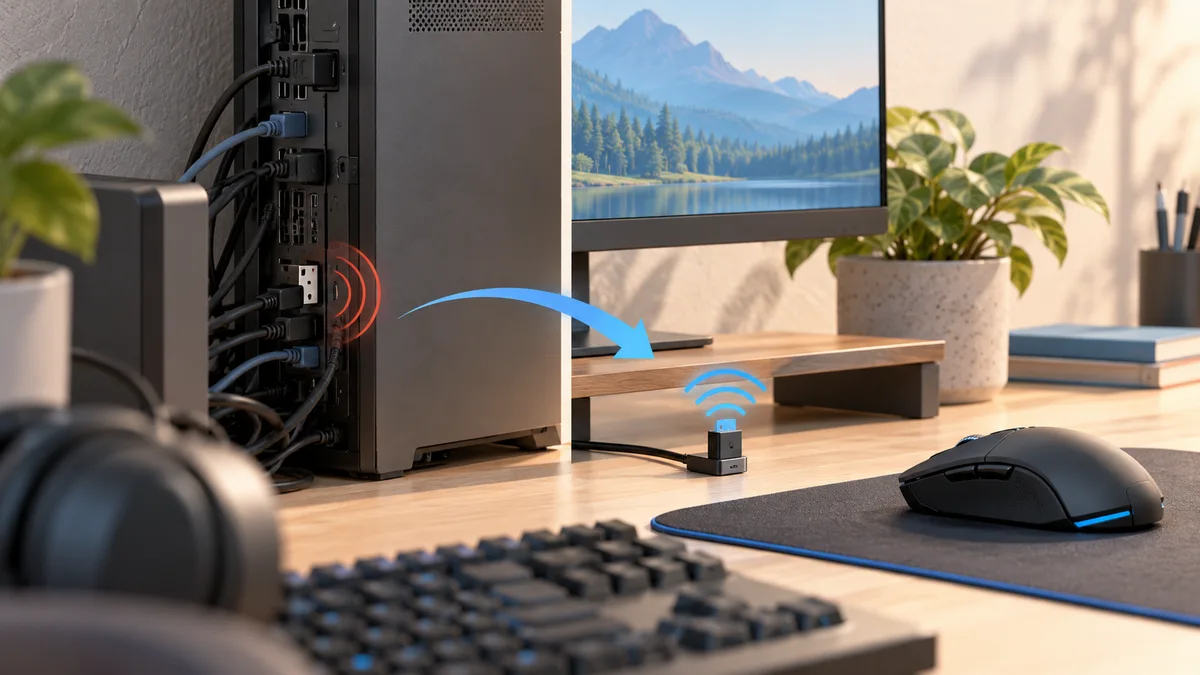
Sources: Logitech G303: receiver placement instructions; Logitech Support: wireless interference near USB 3.0 devices
Make the decision around your desk
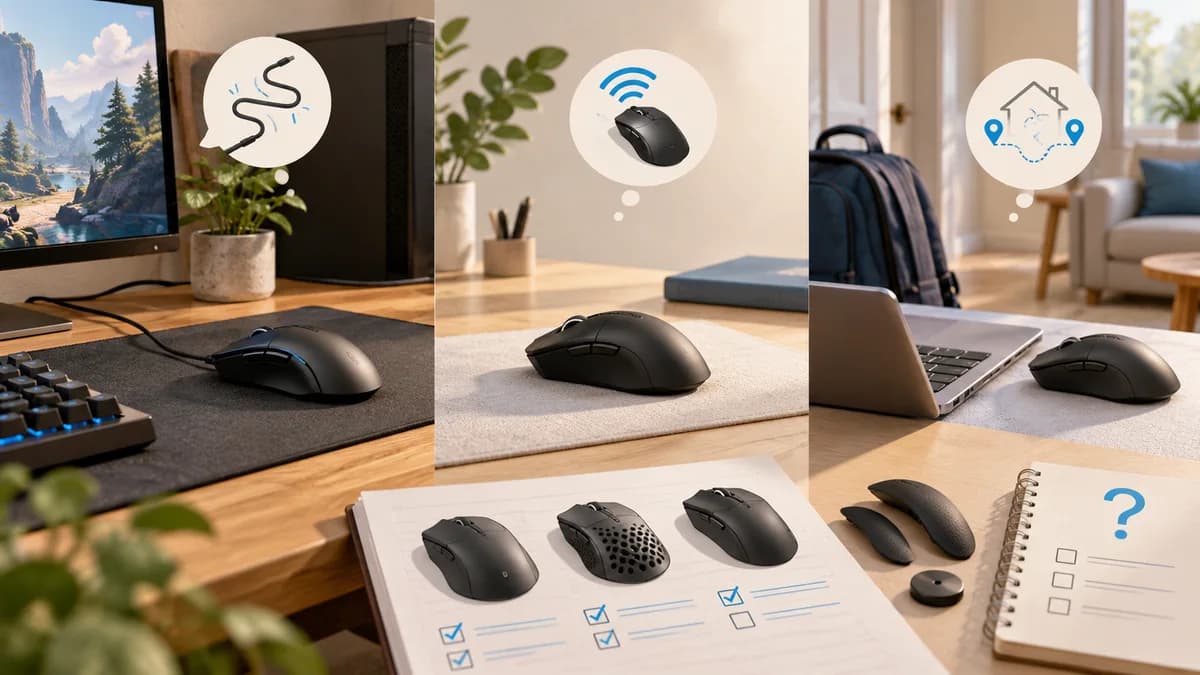
Write down which inconvenience you actually want to remove. For a fixed desktop with a clear cable path, wired may already solve the job. If cable resistance bothers you during broad movements, wireless addresses that directly. For a laptop that moves between rooms, Bluetooth convenience may matter, provided the mouse and host support the functions you need.
Keep shape and controls on the shortlist too. A preferred connection does not compensate for a button you cannot comfortably reach. When comparing our gaming mouse picks, first filter by the connection you can support, then compare fit, weight and controls. Leave any unclear charging or compatibility detail as a question to resolve before ordering.
- Count the available ports and check whether an adapter is needed.
- Confirm the receiver is included for the exact product listing.
- Check that your operating system supports the setup software you need.
- Decide whether battery management or cable management is the easier routine for you.
Common questions
Is wireless always slower than wired?
No universal result follows from those labels alone. Compare independent measurements of the exact models and modes using the same method. Report rate and marketing latency figures are not substitutes for a comparable test.
Can I use a wireless gaming mouse without its dongle?
Only if it supports another suitable connection, such as Bluetooth or wired data. Some models need their compatible receiver for wireless use. Check the manual before assuming a missing dongle is optional.
Does a charging cable turn every wireless mouse into a wired mouse?
No. Charging support and wired input support are separate features. Confirm that the manufacturer explicitly supports wired use if that is part of your backup plan.
PUT IT INTO PRACTICE
Compare your options
Compare our wired and wireless gaming mouse picks after deciding which connection routine suits your setup.
Best gaming mouse: compare our five picksSources and editorial approach
ChooseRight researched the sources below to explain the topic and its practical trade-offs. Examples are illustrations, not results from our own product testing. Sources checked October 21, 2026. Artwork is AI-generated for explanation and does not document hands-on testing.