
START HERE
The short answer
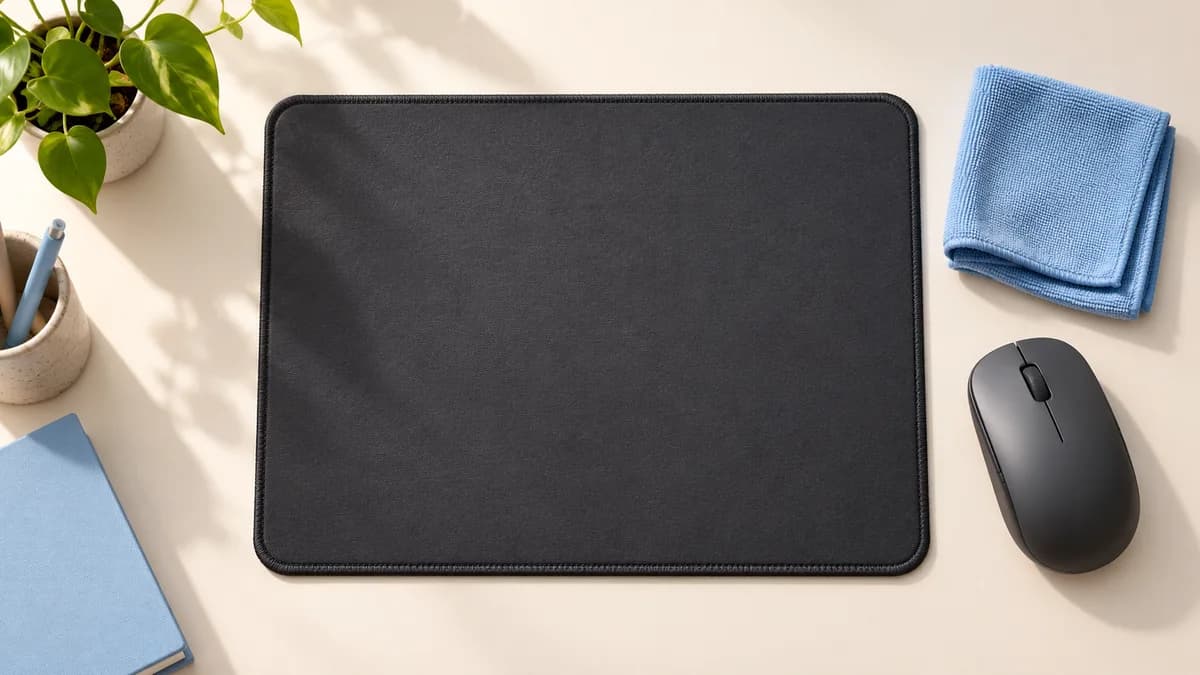
Check the pad manufacturer instructions, disconnect any power and use the approved cleaning method. Some cloth pads permit gentle hand washing; others allow only a lightly damp microfiber cloth. Never assume an RGB or charging pad can be submerged, and let the pad dry fully before reconnecting it.
- Brand instructions differ even for pads that look similar.
- Keep moisture away from powered housings and connectors.
- Avoid heat, abrasive scrubbing and unapproved machine washing.
Identify the surface and any electronics
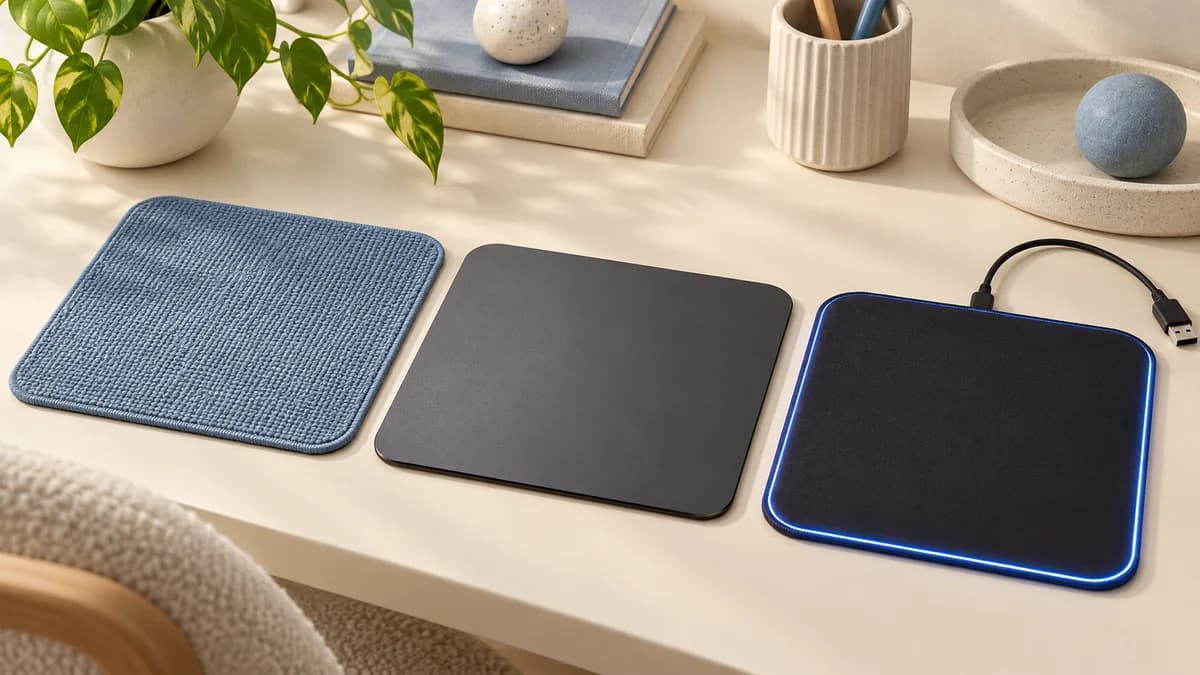
Look for the model name on the underside, packaging or purchase record, then open its care page. Separate a plain cloth pad from a hard surface, adhesive-backed mat or powered model. RGB lighting and wireless charging introduce electrical components even when most of the pad looks like ordinary cloth.
For example, Razer instructs users of its mouse mats to use a lint-free cloth lightly dampened with tap water and specifically says not to use soap, running water or a washing machine. SteelSeries offers a different procedure for its standard cloth pads. Neither instruction should be converted into a universal rule for every gaming mat.
Sources: Razer: device and mouse-mat cleaning guidance; SteelSeries: standard cloth mousepad cleaning
Use the cloth-pad method only where it is allowed
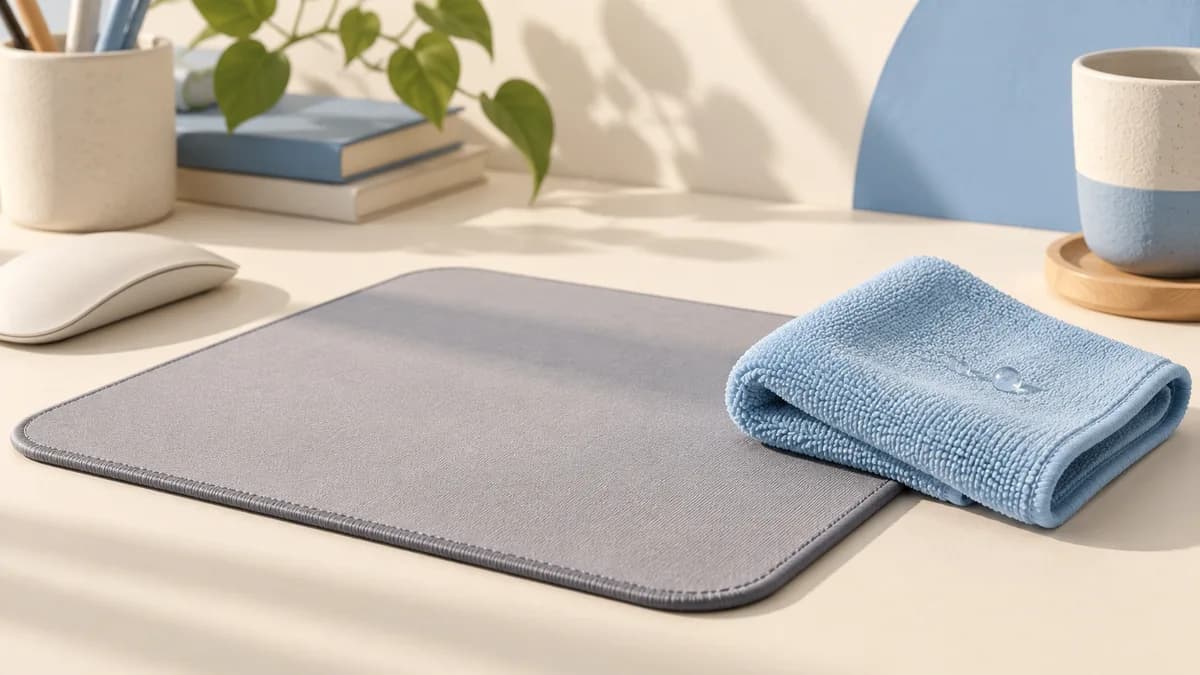
SteelSeries describes gently cleaning compatible cloth pads with soap and warm water, rinsing them and allowing them to dry. If your model has that permission, use gentle contact rather than a stiff brush that can roughen the surface or stitching. Support the pad during handling and do not treat a printed design as something to scrub away.
If your care instructions call only for a damp cloth, follow that narrower method instead. Work on a small area, remove residue as directed and check the surface before repeating. A stubborn mark is not a reason to escalate automatically to alcohol, bleach or abrasive cleaners. Ask the manufacturer if the approved method leaves a stain you cannot identify.
Sources: SteelSeries: standard cloth mousepad cleaning; Razer: device and mouse-mat cleaning guidance
Treat powered mousepads separately
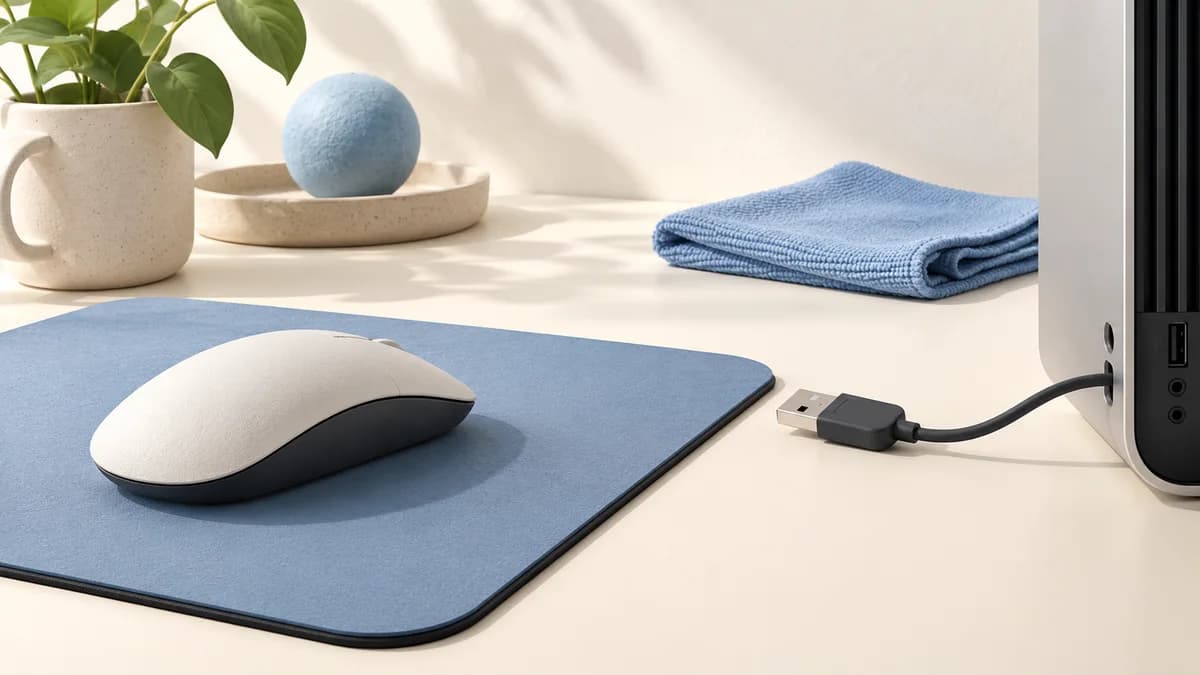
For its RGB and QcK Prism pads, SteelSeries says to unplug the pad and use a very well-wrung microfiber cloth rather than submerging it. Its instructions keep moisture away from the electronics housing where the cable exits. Wipe away soap residue using a similarly well-wrung clean cloth only where that model allows soap.
A detachable USB cable does not make the pad itself washable. Disconnecting power is the first precaution, not proof that liquid cannot enter the housing. Keep the connector and control area dry, and follow the particular charging or lighting pad instructions. If liquid has entered electronics, stop using the pad and seek manufacturer guidance instead of reconnecting it to check whether it works.
Sources: SteelSeries: RGB and QcK Prism cleaning; Razer: device and mouse-mat cleaning guidance
Allow complete drying without forced heat
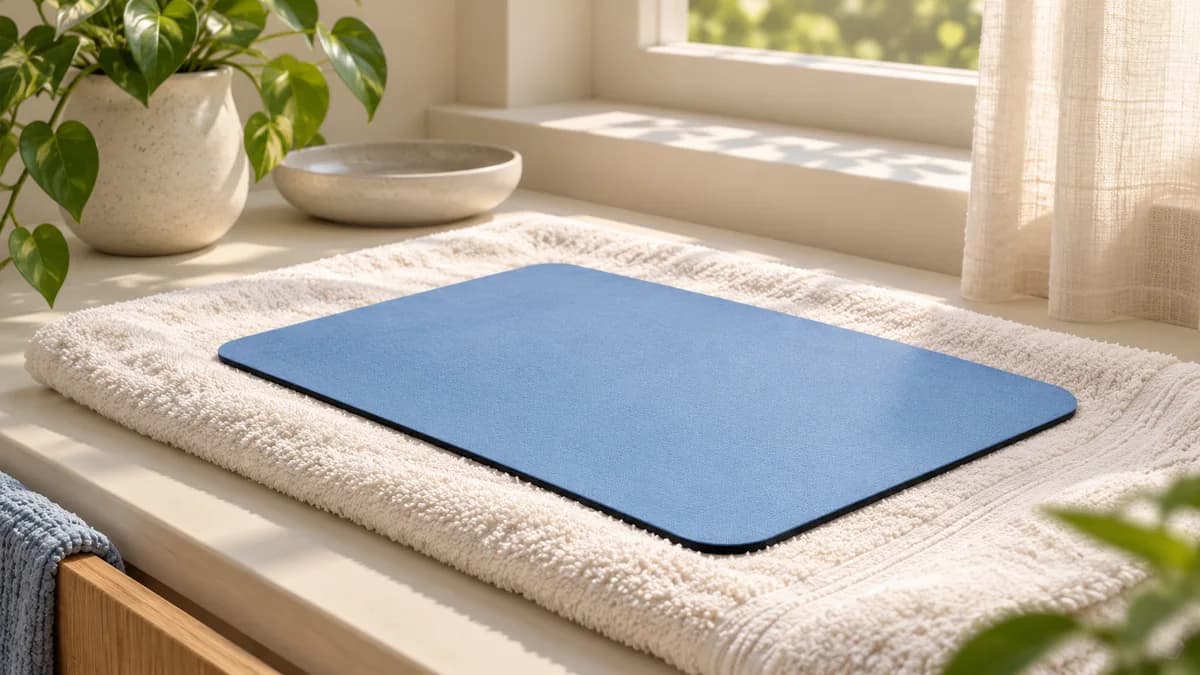
Lay the pad flat in the position its care instructions specify. SteelSeries describes drying RGB pads flat with the top facing up; Razer cautions against direct sunlight and calls for complete air drying before use. Avoid a hair dryer or heater as a shortcut, particularly where adhesive layers, coatings or electronics are involved.
Drying time depends on the construction, how much moisture was used and the room conditions. A surface that feels dry does not establish that a thick backing or edge is ready. Do not promise yourself a fixed gaming restart time before cleaning. Use another suitable surface while the cleaned pad finishes drying, then inspect it for curling, peeling or other damage.
Sources: SteelSeries: RGB and QcK Prism cleaning; Razer: peripheral care and drying instructions
Check the mouse as well as the pad
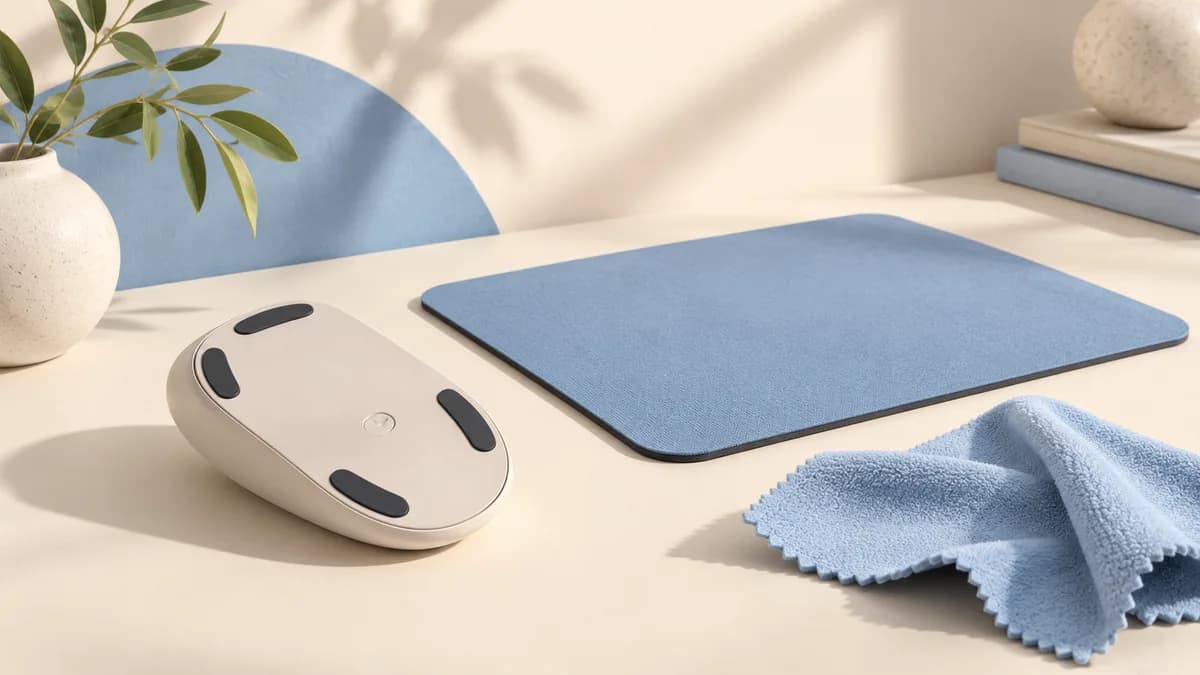
When the pad is dry, check whether its underside and the desk are clean so it sits flat. Also inspect the mouse feet for debris, following the mouse maker care instructions. Razer specifically calls out cleaning the feet for consistent glide. Do not apply a wet cloth to the sensor simply because you used one on the pad.
If tracking remains erratic, cleaning may not be the whole answer. A worn surface, damaged feet or a device setting can require separate investigation. Compare behavior on another compatible surface and use the manufacturer troubleshooting steps. Avoid repeatedly washing a pad that shows peeling or damage; further cleaning will not restore a missing coating or detached backing.
| Pad type | First check |
|---|---|
| Plain cloth | Whether this exact model permits hand washing |
| Hard or adhesive-backed | Approved wiping method and handling limits |
| RGB or charging | Power disconnection and dry electronics area |
| Any cleaned pad | Complete drying and no damage before use |
Sources: Razer: device and mouse-mat cleaning guidance; Razer Sphex: handling and maintenance
Common questions
Can a mousepad go in the washing machine?
Only if the maker explicitly allows it. Razer prohibits machine washing its mouse mats, and other pads can have incompatible backings or electronics.
Can I use dish soap on every cloth mousepad?
No. Some SteelSeries methods use mild soap, while Razer tells users not to use soap on its mats. Follow the exact model guidance.
How often should I clean it?
Inspect for visible buildup and changes in feel, then follow the maker guidance. There is no cleaning interval that applies to every material and usage pattern.
Sources and editorial approach
ChooseRight researched the sources below to explain the topic and its practical trade-offs. Examples are illustrations, not results from our own product testing. Sources checked October 30, 2026. Artwork is AI-generated for explanation and does not document hands-on testing.